Every turnover, tracked, cleaned, and paid.
This handbook covers every part of CleanCal — the calendar and booking editor, calendar sync, the cleaning checklist and photos, your cleaning team, availability, maintenance and supplies, notifications, the dashboard and reports, your profile and devices, and trust & payments. Skim the sidebar for what you need, or read straight through if you're setting up for the first time.
Just here to clean? The cleaner quick guide covers everything you actually need in a few minutes.
Welcome
CleanCal is the calendar that runs a short-term rental's turnovers: it knows every booking across every platform you list on, hands the cleaning job — with a full room-by-room checklist — to a cleaner on your team, and gives you a one-click way to pay them once the job's done. Three kinds of people use it:
- Owners — run the account. Full access, plus the things nobody else can do: change anyone's role, delete a property, and set what a cleaner gets paid (the payout rate and any linen fee).
- Managers — run the day-to-day. Same operational access as an owner, minus role changes, property deletion, and pay-rate changes.
- Cleaners — see the full portfolio schedule (so they can plan around other jobs), but only full detail on their own assignments and the open job board; manage their own ratings, ID verification, and payout setup.
Signing in & your business
There's no password to remember. Enter your email on the sign-in page and CleanCal sends a one-time sign-in code — tap the link in that email, or type the code straight into the page (useful if your email provider, Gmail especially, automatically opens links to scan them, which can burn a one-time link before you ever tap it yourself).
The first time you sign in, you land on a short setup step instead of the calendar, since you don't belong to a business yet:
- Starting your own business — enter your name and you become its Owner immediately. There's no business name to give up front; set one whenever you like from Menu → My Profile.
- Joining an existing one — if someone sent you an invite link, open it and confirm; you're added with whatever role they set (Cleaner, Manager, or Owner).
A business's data is completely separate from every other business on CleanCal — nobody outside your team ever sees your properties, bookings, or cleaners, and you never see theirs.
Roles at a glance
Every permission below is enforced on the server, not just hidden in the interface — a Cleaner account genuinely cannot reach Manager-level data, even by guessing a URL. The two money fields (payout rate and linen fee) are enforced as Owner-only in the database itself, not just hidden from a Manager's screen.
| Capability | Owner | Manager | Cleaner |
|---|---|---|---|
| View the full calendar (create/edit is Owner/Manager only) | Yes | Yes | Yes, full detail on own jobs & open board; occupancy only on others' |
| Add properties, connect calendar feeds, set a property's room profile | Yes | Yes | — |
| Delete a property | Yes | — | — |
| See a guest's email, phone and notes (direct bookings) | Yes | Yes | — |
| Owner statements, client fees, payout imports (add-on) | Yes | Yes | — |
| Assign or rate cleaners, resolve disputes | Yes | Yes | — |
| Change anyone's role | Yes | — | — |
| Set a property's payout rate or linen fee | Yes | — | — |
| Pay a completed job (at whatever rate is already set) | Yes | Yes | — |
| Invite a new Cleaner | Yes | Yes | — |
| Invite a new Manager or Owner | Yes | — | — |
| View Dashboard & Reports (CSV export) | Yes | Yes | — |
| Remove, restore or delete a cleaner's account | Yes | — | — |
| Create work orders & maintenance schedules, restock supplies | Yes | Yes | — |
| Update a work order assigned to you, report a supply "Used one" | Yes | Yes | Yes |
| Mark your own days unavailable, view History, edit My Profile | Yes | Yes | Yes |
| Clients & fees and platform Payouts (owner statements add-on, when enabled) | Yes | Yes | — |
| Set the business name | Yes | — | — |
Handing someone the Manager role means handing over the business's day-to-day — without handing over who's in charge, or what anyone gets paid.
The calendar
Along the top bar, the ‹ › arrows step to the previous or next period, the label in between says which period you're looking at, and Today jumps back to now. Owners and Managers also get a + New booking button. Three views are switched from the top bar:
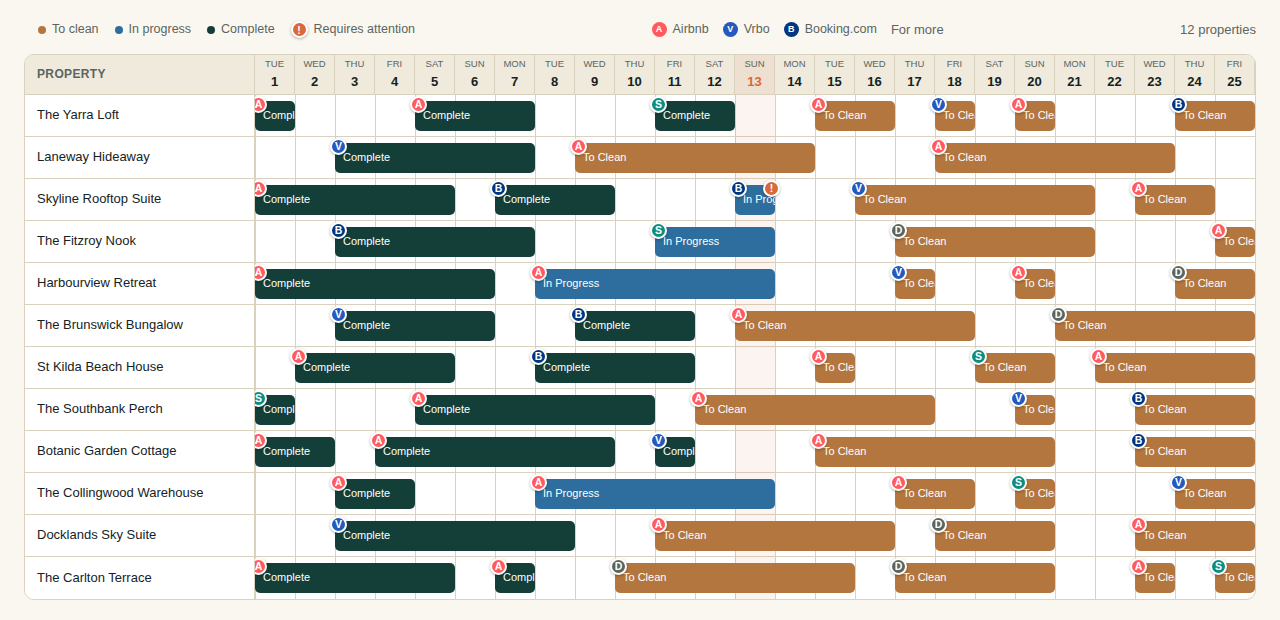
- Week / Month — every property as a row, bookings as colored bars. Amber means to clean, blue means in progress, teal means complete. A small red badge on a bar means Requires attention — either the oven check on that booking's checklist was marked that way, or a cleaner ticked the general "Needs attention" box under Notes (see Cleaning checklist & photos).
- Year — pick one property from the dropdown for a full 12-month view of just that listing, guest names on each stay.
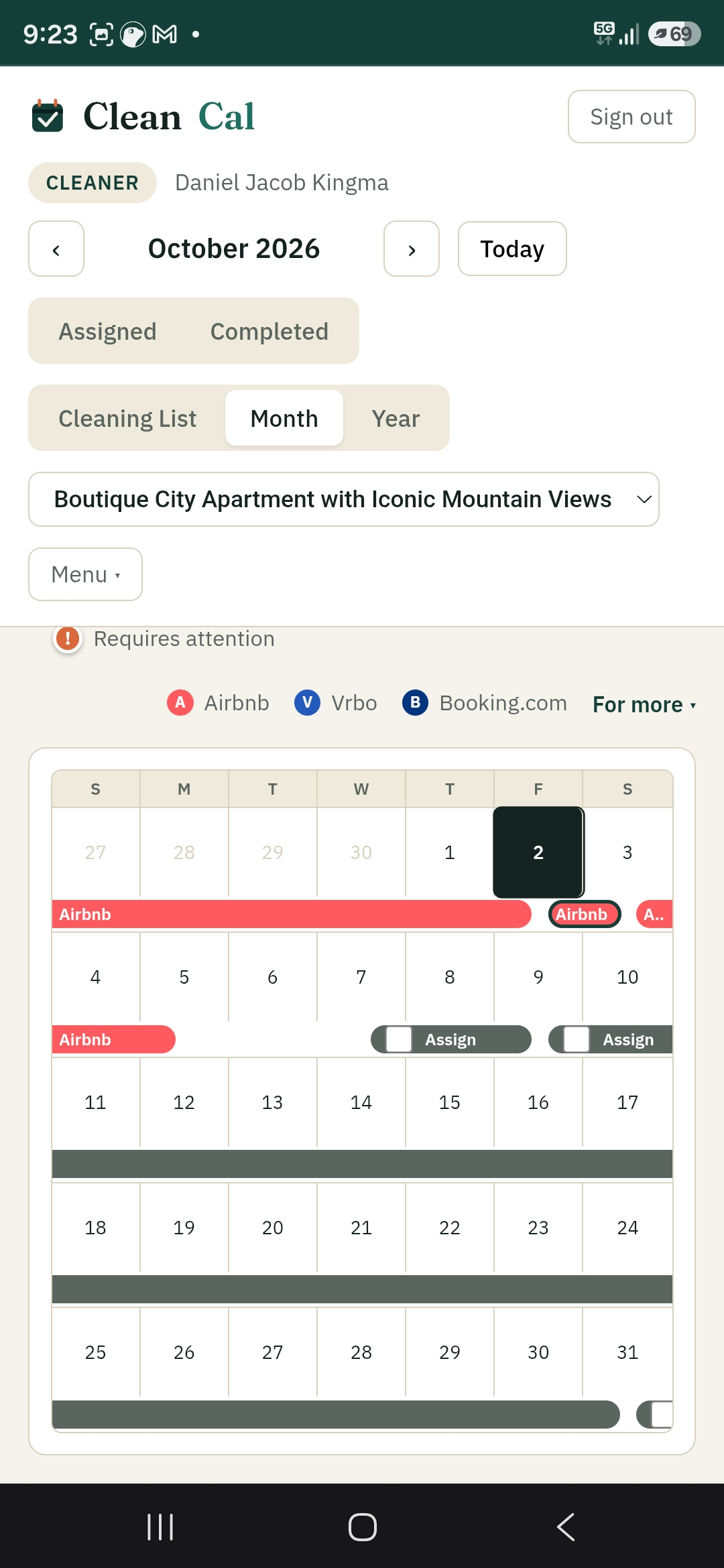
On a phone, the same three tabs are there, laid out to fit a narrow screen:
- Week — a 7-day grid with every property as a row. The property column is kept narrow to leave room for the days; tap a property's name to see it in full (the same works on desktop if a long name is cut off).
- Month — a compact month grid for one property at a time; pick the property from the dropdown in the top bar. Tap a day to open it — if more than one clean falls on that day (a same-day turnover), you get a short list to choose from, so you never have to hit two overlapping slivers precisely.
- Year — a stack of twelve mini-months for the property picked in the dropdown.
Both roles, on desktop and phone, also have Assigned and Completed, set apart from Week/Month/Year in their own pill group since they're worklists rather than calendar views. They're a scrollable day-by-day agenda of cards, paginated by month. For a cleaner, Assigned lists every job they've actually claimed or confirmed that isn't finished yet, and Completed lists everything they've already cleaned. For an Owner/Manager, both list every booking in the portfolio in that state regardless of who's on it, naming the cleaner on each card — in that cleaner's own favourite colour (see My Profile), so you can pick out one person's jobs at a glance.
A bar always starts a little into its check-in day and ends a little into its checkout day — 2pm check-in, 10am checkout — so a same-day turnover reads correctly instead of looking like a gap or a double-booking.
Click any bar to open it. Click empty space on the calendar to start a new booking (Owner/Manager only).
A cleaner sees this same calendar across every property, not just their own jobs — useful for planning around the rest of the schedule. Their own assigned bars get a teal outline; a small teal "?" badge means a directly-assigned job is still waiting on their confirmation (see Managing the cleaning team). A job that isn't confirmed as theirs — whether no cleaner has been picked yet or an Owner/Manager already suggested someone else — shows no guest name, status, or platform badge at all, just an Assign checkbox: ticking it claims the job for that cleaner immediately, the same as claiming one off the open job board.
An Owner/Manager sees every booking's real status and platform badge, and on any job that has a cleaner on it (confirmed or not) — a small 🧹 mark plus that cleaner's name, right on the bar, on Week, Month, and Year alike. Nothing shows a generic "Reserved" label anymore, and a platform's name only ever appears once per booking.
A bar can be too short to fit a full name. When that happens — and always on the phone's Month grid — the cleaner's initial is shown instead of cutting the name off mid-word, tinted in their favourite colour. Cleaners see this too: on the shared schedule they can see the initial and colour of whoever is allocated to each booking (and nothing else about that person), so nobody turns up to a job that isn't theirs.
Opening & editing a booking
Click or tap any bar (or card) to open its booking. Owners and Managers can also start a blank one with + New booking, or by clicking empty space on the calendar. What you can change depends on your role.
For Owners & Managers
- Property, Guest/s, Booking platform — the platform field suggests Airbnb, Vrbo, Booking.com, Expedia and Direct, but you can type any name. It decides the colored badge on the bar.
- Direct bookings & guest contact — taking a booking without a platform? Enter it with + New booking, set the platform to Direct, and fill in the guest's email, phone and guest notes. These are visible to Owners and Managers only; cleaners see just the guest name once a job is theirs, and the details never go out in the calendar link.
- Check-in, Checkout, Nights — the three are linked: change any one and the others follow. A booking can be 1 to 30 nights.
- Assignment — Reserved for a cleaner (pick them in Assigned cleaner, which shows each cleaner's average rating) or Open — any cleaner can claim, which posts it to the open job board. See Managing the cleaning team. If the cleaner you pick marked themselves unavailable on the clean date, a warning says so right there (see Availability).
- Cleaner takes linen off-site to clean — tick this on a booking whose linen needs picking up; it shows exactly how much it adds to the payout (see Cleaner payouts).
- Cleaning status — To Clean, In Progress, or Complete.
- Notes and the general Needs attention box — see Cleaning checklist & photos.
- Further down: the checklist and photos, a Rate this cleaning section (once it's complete and has a cleaner), the Cleaner payout section, and the Dispute thread.
- Delete removes the booking for good. A booking that came in from a calendar feed and later disappears from it is removed automatically (see the FAQ).
The property's access instructions (door code, parking, wifi — whatever you saved on the Properties page) appear in the booking so a cleaner sees them without asking.
For cleaners
You can see the booking's dates, notes and access instructions, and you work the checklist, photos and status on jobs that are yours. Depending on the job, the buttons at the bottom are:
- Claim this job — for a job on the open board or one with no cleaner confirmed.
- Confirm / Decline — on a job an Owner or Manager assigned directly to you.
- Decline job — hands a job back before you've started it.
- Release job — puts a job you claimed back on the open board.
- Save — saves your status and checklist.
Cleaning time is recorded for you: the first time a cleaner sets their own job to In Progress and the first time they set it to Complete, CleanCal notes the moment, and the gap is the time the clean took. That's what the Reports page uses for average cleaning time. Jobs finished before this existed, or completed by an Owner/Manager on someone's behalf, have no time recorded.
Properties & two-way sync
Open Manage → Properties from the calendar's top bar to manage each listing.
Adding and finding properties
Type a name under Add a property and press Add property. Each property is a collapsed row showing its name and how many calendar feeds it has (a red Sync error pill appears on the row if any feed is failing) — tap a row to open all of its settings. Sync all feeds at the top syncs every property in one go and tells you how many succeeded.
Access instructions
Inside each property, Access instructions is where you put the door code, parking, wifi — anything a cleaner needs to get in and get started. It's shown to cleaners on that property's bookings.
Bringing bookings in
- On your OTA (Airbnb, Vrbo, Booking.com, or any other), find its calendar export link — usually under Calendar → Export or Sync.
- Paste it into the property's Add feed field with a label, e.g. "Airbnb".
- Click Sync now, or leave it — feeds sync automatically on a schedule if that's configured for your account.
Each feed shows a status pill — Never synced, OK or a red Error with the reason underneath — plus buttons to Sync now or Remove it. A property can have as many feeds as it needs (Airbnb, Vrbo, your own website…). A property with no feeds simply takes bookings you enter by hand. Re-syncing updates a reservation's dates rather than duplicating it, and never touches its cleaning status, checklist or assigned cleaner.
Sending your calendar back out
Every property also has its own Calendar export link. Paste that one into each OTA's "connect to another website" or "import calendar" field. This is what actually prevents double-bookings: without it, a booking made on Vrbo never tells Airbnb the date's taken.
Property profile
Each property also has a profile — bedroom count, bathroom count, and whether it has an outdoor area — set right on this page, next to access instructions. This is what the cleaning checklist uses to scale itself to the actual property; see Cleaning checklist & photos below. Any property that's never had this set defaults to 1 bedroom, 1 bathroom, no outdoor area.
Pay settings and deleting a property
The same page holds each property's payout rate and linen service (boxes and fee per box) — Owner-only; a Manager sees the figures but can't change them (see Cleaner payouts). Only an Owner sees Delete property, which permanently deletes the property along with every booking, photo and calendar feed on it, after a confirmation. It can't be undone.
Cleaning checklist & photos
Every booking carries a full, room-by-room cleaning checklist, modeled on a real professional turnover checklist rather than a handful of generic line items: Bedrooms, Bathrooms, Kitchen, Dining/Living Room, Floors & Carpets, Outdoor Areas (if the property has one), and Locking Up. Each section is collapsible with a live done/total count, so a cleaner works through one room at a time on their phone instead of scrolling one long list.
The checklist scales to each property's own profile (set on the Properties page — see above): a property with 3 bedrooms gets three separate Bedroom sections to track independently ("Bedroom 1," "Bedroom 2," "Bedroom 3"), same for bathrooms, and the Outdoor Areas section only appears if the property actually has an outdoor area.
The oven is the one item worth a heads-up if it needs real attention: instead of a plain checkbox, it has Cleaned and Requires attention buttons. Marking it "Requires attention" puts a red "!" badge on that booking right on the calendar, visible to Owners and Managers at a glance.
For anything else worth flagging — not specific to one checklist item — there's a general Needs attention checkbox right under the booking's Notes field. Ticking it opens a text box for a quick note (e.g. "broken lamp in bedroom"), and puts that same red "!" badge on the booking so the host sees it without having to open every job.
Photos
A cleaner can attach photos to a booking while working through it — useful for proving a clean's condition or flagging pre-existing damage. Click or tap any photo to see it full-size: on desktop, just hover over the thumbnail; on a phone (no hover), tap it to open a large view, tap again (or the ✕) to close.
Tap the + tile to add photos (you can pick several at once), and the small ✕ on a thumbnail removes one. CleanCal checks each photo as it's uploaded, and one that looks out of focus gets a Blurry badge. A cleaner needs at least one photo, with no blurry ones left, before the job can be marked complete — retake any that are flagged and remove the bad ones.
Managing the cleaning team
Assign a booking to a specific cleaner, or mark it Open so any cleaner on your team can claim it first-come, first-served — claiming is atomic, so two cleaners can never grab the same job. Claiming an open job counts as accepting it immediately, but a job you assign directly to a specific cleaner doesn't count as accepted until they actively confirm it — they see a Confirm/Decline prompt the moment they open it, and can't update its checklist or status until they confirm. Declining (whether pending or already confirmed, any time before the job's started) puts it back on the open board for someone else. A cleaner who can't make an already-confirmed job anymore can release it back to the pool the same way.
Picking a cleaner in the assignment dropdown is a starting suggestion, not an exclusive lock: every other cleaner still sees that job as unassigned on their calendar, with a checkbox that claims it immediately — first to tick it gets it, same as the open job board. If the wrong cleaner ends up on a job, or you just want to swap who's doing it, the Assigned cleaner dropdown in the booking editor works at any time, on any booking, claimed or not — pick someone else and save to reassign it directly, no approval step either way.
Every completed job gets a 1–5 star rating with an optional note. Ratings roll up into each cleaner's profile average, visible right in the assignment dropdown and on the Cleaners page — so you're never assigning blind. To rate one, open the completed booking and use Rate this cleaning (Owner/Manager only); the cleaner is notified, and a rating of 2★ or lower also raises a re-clean work order (see Maintenance & supplies).
Disputes
Either side — Owner/Manager or the assigned cleaner — can flag an issue on a booking: property condition, a payment disagreement, anything. It opens a threaded conversation attached to that booking, visible to both sides and no one else. Posting a reply reopens the thread even if it was marked resolved, so nothing quietly gets buried.
Find it in the Dispute section at the bottom of the booking: type your message and press Post. Each message shows who wrote it, whether they're an Owner, Manager or cleaner, and when. An Owner/Manager can press Mark resolved once it's sorted. Open and resolved disputes show as a small pill on the booking and in History and Reports, and open ones are listed on the Dashboard.
Maintenance & supplies
Two things that live outside the cleaning calendar entirely, both under Menu (or Manage, for Owners/Managers).
Work orders
A standalone task on a property — a broken dishwasher, a squeaky door — that isn't tied to any specific cleaning booking. Owners/Managers create one with a title, description, priority (Normal or Urgent), an optional due date, and optionally assign it to a cleaner; a cleaner sees anything assigned to them and can move it between In progress and Done themselves, without needing to go through staff.
Open work orders are listed with a tag for where they came from — Manual (someone created it), Low rating (raised automatically from a poor rating) or Preventative (raised from a recurring schedule) — plus an Urgent tag where it applies, who it's assigned to, and the due date. Owners/Managers get Mark in progress, Mark done and Delete on each; a cleaner gets Start and Mark done on their own. Finished work orders drop into a Done list with the date they were completed. A cleaner is notified when a work order is assigned to them.
A rating of 2★ or lower on a booking automatically creates an urgent work order for a re-clean and notifies Owners/Managers — nothing to remember to do by hand.
Preventative maintenance
A recurring task per property — "replace HVAC filter every 90 days," say — independent of any booking. Once it goes overdue, a work order gets created for it automatically (checked once a day); completing that work order rolls the schedule's due date forward on its own. Owners/Managers can also mark one done directly, or spin up its work order early without waiting for it to go overdue.
To set one up, go to Preventative maintenance at the bottom of the Maintenance page (Owner/Manager only), choose the property, how many days apart it repeats (Every (days)) and a title, then press Add schedule. Each schedule shows Due in N days or, in red, Overdue by N days, with Mark done now, Create work order and Delete buttons. When a schedule goes overdue, Owners/Managers are notified.
Supplies
A running list of consumables per property — toilet paper, coffee, soap, whatever you stock — each with a quantity and a "low at or below" threshold. Anyone, staff or a cleaner on the job, can tap Used one to report using an item up; the count can only ever go down this way, never up, so it's safe for anyone to tap. Once an item crosses its low-stock line, Owners/Managers get notified automatically. Restocking — setting the count back up once you've actually bought more — is an Owner/Manager action, kept deliberately separate from usage reports so the two can never be mixed up.
To add an item, an Owner/Manager fills in Add a supply item at the top of the Supplies page: property, item name, unit (rolls, bottles, bags…), starting quantity, and Flag as low at or below. The list is grouped by property, with a red "low" tag on anything at or under its line and a count of how many items are running low in the heading. Each item has Used one for everyone, and for Owners/Managers a Restock to… box with a Restock button, plus Remove.
Mobile app
CleanCal isn't in the App Store or Google Play — it installs straight from your phone's browser instead, as a Progressive Web App (PWA). That means one fewer download to manage and updates that land instantly, with no app-store review to wait on. Once installed, it looks and behaves like any other app: its own home-screen icon, its own app-switcher entry, and a full-screen window with no browser address bar.
Installing on iPhone (Safari)
- Open cleancal.net in Safari — the install prompt only appears in Safari, not Chrome or another browser on iOS.
- Tap the Share icon (the square with an arrow pointing up) in the bottom toolbar.
- Scroll down and tap Add to Home Screen.
- Tap Add in the top-right corner — the CleanCal icon appears on your home screen right away.
Installing on Android (Chrome)
- Open cleancal.net in Chrome.
- Tap Install app if Chrome offers it directly (usually as a banner or an icon in the address bar) — otherwise open the ⋮ menu in the top-right and tap Add to Home screen or Install app.
- Confirm by tapping Install (or Add) on the prompt that appears.
New accounts are also shown these install steps right after signing up. For the alerts that make the installed app worth having, see Notifications below.
Notifications
From Menu → Enable notifications, CleanCal can push an alert straight to your phone or computer (the same item turns them off again). Turn it on from inside the installed app for the most reliable delivery. If your browser has blocked notifications for CleanCal, re-allow them in the browser's site settings first. If your phone number is saved in My Profile and text alerts are switched on for the platform, you can also tick a box there to get the same alerts by SMS.
| Alert | Who gets it |
|---|---|
| New open job posted — a booking is posted to the open board | Every active cleaner |
| New job assigned to you | The cleaner it's assigned to |
| Job confirmed, Job declined, A job was claimed | Owners & Managers |
| Jobs back on the open board — a cleaner was removed from the team and had upcoming jobs | The remaining cleaners |
| You got a new rating | The cleaner who was rated |
| Re-clean flagged — a rating of 2★ or lower | Owners & Managers |
| New dispute message | Owners & Managers when a cleaner posts; the assigned cleaner when staff post |
| A booking was removed — it disappeared from its source calendar | Owners & Managers, and whoever was assigned to it |
| New work order assigned to you | The cleaner it's assigned to |
| Maintenance due — a preventative schedule went overdue | Owners & Managers |
| Supply running low | Owners & Managers |
| Signed in on a new device | The account that signed in (see My Profile) |
The Cleaners page
Manage → Cleaners (Owner/Manager) is the home for your team. From top to bottom:
- Invite someone to your team — pick a role, press Generate invite link, then copy the link, or copy the ready-made message, or press Open in email. Managers can only invite Cleaners; Owners can also invite Managers and Owners. Each link works once. (More under Signing in & your business.)
- Team roles (Owner only) — everyone on the account with their email address, and a dropdown to change their role to Owner, Manager or Cleaner. You can't change your own role, so you can't lock yourself out.
- One card per cleaner — name (with their favourite-colour dot), the email address (Owner only), an ID verified / ID pending / ID not verified badge, a Payouts set up / pending / not set up badge, their average rating and how many ratings that's from, their phone and service area, their bio, and the next few days they've marked themselves unavailable (see Availability).
Removing a cleaner
An Owner can press Remove from team on a cleaner's card. They're signed out and can't sign back in, and any of their upcoming, not-yet-complete jobs go back on the open board (the other cleaners are notified). Their past bookings, ratings and payout history are kept.
Removed cleaners move to a Removed cleaners list at the bottom with the date, where an Owner can either Restore access or, as a deliberate second step, Delete — permanently deleting their account after typing DELETE to confirm. A deleted account can't be brought back; their past bookings, ratings and payout history stay on record, just no longer linked to a named account.
Availability
Menu → Availability is a calendar where you mark days you can't work. Everything is assumed available unless you say otherwise: click or tap a day to mark yourself unavailable (it turns coral), and click it again to clear it. Use ‹ › to move between months. Past days can't be changed, and each change saves as you click.
Owners and Managers see your upcoming unavailable days on the Cleaners page, and if a booking is assigned to a cleaner who has marked its clean date as unavailable, the booking editor shows a warning. It's a heads-up, not a block — you can still assign them. Anyone can use the page, including Owners and Managers, but it only ever affects your own dates.
History
Menu → History lists every completed clean, newest first, with a count and the average rating at the top. Each row shows the property, guest(s), check-in date, nights, the source platform, the rating and any note, and a dispute pill if there was one. For a cleaner this is their own completed jobs; for an Owner/Manager it's the whole portfolio, with a Cleaner column showing who did each one. (For filtering by date, property or cleaner and for exporting, see Reports.)
My Profile & devices
Menu → My Profile holds your details. Press Save after changing them.
- Email — shown for reference (it's what you sign in with).
- Given name, Middle name (optional), Surname — what your team sees.
- Preferred initial (cleaners) — when a booking bar is too short for your full name, your initial is shown instead. It's made from one letter of each name you've filled in, and the page previews it as you type.
- Favourite colour (cleaners) — pick one of ten light shades. Your name and initial appear in it in the Assigned and Completed lists and on the calendar, so your jobs are easy to pick out. Only lighter shades are offered so it stays readable on the calendar's booking colours.
- Phone and Service area — so admins can reach you and know where you work. When text alerts are available on the platform, an extra Also text me booking/job alerts tick-box appears under Phone (standard SMS rates may apply).
- Bio — a short intro: experience, availability, specialties.
- Business name (Owner only) — shown on invite messages and in the Handbook. Signing up doesn't ask for one, so set it here whenever you like.
- Identity verification and Payouts (cleaners) — see ID verification and Cleaner payouts.
Devices & sessions
You can be signed in on a computer and a phone at the same time. This section lists the devices that have signed in to your account, with when each was last seen. Whenever your account signs in on a device it hasn't seen before, you get a Signed in on a new device notification naming it (if you've turned notifications on). If you don't recognise one, or you just want to close out an old session, press Sign out other devices — it ends every other session and keeps the one you're on.
Dashboard
Manage → Dashboard (Owner/Manager) is the at-a-glance page. Five tiles:
- Cleans due in 7 days — bookings checking out within the next week that aren't complete yet.
- Open jobs, unclaimed — jobs on the open board nobody has claimed.
- In progress right now — jobs a cleaner has started.
- Open disputes
- Team rating avg — the average of every rating given, with how many active cleaners you have.
Below the tiles, Needs attention lists each open dispute and each unclaimed open job — type, property, date (marked "past" if it's already gone by) and detail — oldest first. When there's nothing to chase it says so.
Reports & CSV export
Manage → Reports (Owner/Manager) analyses your completed cleans.
- Filters — From and To (by check-in date), Property and Cleaner. Everything below updates as you change them.
- Tiles — Completed cleans, Nights cleaned, Average rating and Disputes for the filtered set, then Priciest to turn over (the property with the highest average cost per clean) and Fastest cleaner (lowest average cleaning time).
- Trend over time — once the filtered cleans span more than one month, a bar per month showing the number of cleans and that month's average rating.
- By property — cleans, nights, average rating and average cost per clean. By cleaner — cleans, average rating and average time.
- Matching jobs — the full list: property, guest(s), check-in, nights, source, cleaner, rating and dispute.
Export CSV downloads whatever the filters currently show as cleancal-report-YYYY-MM-DD.csv, with the columns: Property, Guest(s), Check-in, Nights, Source, Cleaner, Rating, Rating comment, Dispute, Est. cost and Duration (min). It opens straight in Excel or Google Sheets.
Owner statements: Clients & Payouts
If you manage properties on behalf of landlords, this add-on is the start of monthly owner statements: what the booking platform paid out, less cleaning, your management fee and any expenses. It's in beta and is switched on per account, so you only see it if it's been enabled for yours — then Clients & fees, Payouts and Owner statements appear in the Manage menu (Owner/Manager only). Don't see them and want them? Email support@cleancal.net.
Clients & fees
A client is the owner of a property you manage (to keep it apart from the CleanCal account Owner role). Open Manage → Clients & fees:
- Add a client — name, statement currency (AUD, NZD, GBP, EUR, USD, CAD, ZAR, INR, SGD or JPY), email (where statements will go) and phone. A client's row in the table shows how many properties they have, with Edit and Remove. Removing a client leaves their properties in place, just unassigned.
- Property fees — each property is a collapsed row showing its client; tap it to open. For each property: its Client, Management fee %, Fee charged on (the full payout, or the payout after cleaning), and Cleaning charged to owner ($). Leave the cleaning charge blank and it uses that property's cleaner payout rate, plus the linen fee when linen was picked up. Press Save fees. The heading counts properties that still have no client.
- Platform listings — a property can have any number of listings on any platform. Each is a platform plus what that platform's payout export calls the property (its title or listing ID). They help payouts find the right property when a line has no confirmation code. The page lists platforms the property has a calendar feed from but no listing yet, so nothing is missed.
Payouts
Manage → Payouts brings in the money rows.
- Download a CSV from the platform — Airbnb: Earnings → Transaction history → export CSV; Booking.com: export reservations or payouts from the extranet. Keep each file to about a month at a time (uploads are limited to roughly 900 KB).
- Choose the file, set Currency (if the file doesn't say) for exports with no currency column, leave Platform and Dates in file on Detect automatically (or pick Airbnb, Booking.com, Other, and Day/month/year or Month/day/year if the result looks wrong), and press Import.
- A summary says how many lines were imported, how many matched a booking, how many matched a property only and how many need a property, plus any warnings and skipped rows. Importing the same file twice never doubles anything.
- Lines CleanCal couldn't place land under Needs a property. Pick the property (and optionally the booking), tick Remember this listing for next time so the next import matches by itself, and press Save — or Ignore a line that doesn't belong.Re-run matching retries them all after you add listings.
Lines are matched by the booking's confirmation code first (Airbnb's code is read from its calendar feed automatically), then by listing and check-in date, then by listing alone. A line matched to a booking fills in that booking's guest name on the calendar, without ever overwriting a name that is already there. Not linked to a booking lists lines placed on a property only, which still count toward its owner statement — linking a booking adds the guest and nights. Ignored lines can be restored, and Recent imports shows each file with an Undo that removes that whole import.
Owner statements
Manage → Owner statements turns it all into a monthly statement for each client.
- Pick the Client and the Period: a Month, or a Financial / tax year — choose your Country and the year follows its dates (Australia 1 July to 30 June, New Zealand and India 1 April to 31 March, UK 6 April to 5 April, South Africa 1 March to end February, and calendar year for the US, Canada and Ireland; Calendar year (other) covers anywhere else). A financial-year statement adds a month-by-month table and a total, which you can give to the owner or their accountant for tax time (it's a summary of your records, not tax advice, and GST, VAT and other sales taxes aren't calculated). Amounts show in the client's currency, and payouts in another currency are left out and flagged rather than converted. The statement is worked out live: platform payouts (by payout date) less a cleaning charge for each stay that checked out that month, less your management fee, less expenses. It's broken down property by property.
- Add Expenses under the statement — a property, a date, what it was for and the amount (a replacement kettle, say). They count against the owner's net for that month, and Remove takes one back out.
- Press Save statement to freeze a copy. Later changes to fees, payouts or expenses won't alter a saved copy; Re-save replaces it with fresh numbers.
- On the saved statement, Print or save as PDF gives a clean printable page. Switch on the Owner link to get a private page your client can open without signing in — copy the link or press Email to client (it opens your email app with the link filled in). Anyone with the link can see that one statement, so switch it off or Replace link whenever you want it to stop working.
The cleaning charge per stay is the property's "Cleaning charged to owner" amount if you set one, otherwise the cleaner payout rate plus the linen fee when linen was picked up. If a statement looks short, check that payouts are imported and matched to a property, and that the property is assigned to the client.
Money from this add-on is visible to Owners and Managers only — cleaners can never see client fees or payout figures.
ID verification & background checks
A cleaner verifies their own identity from Menu → My Profile — a government ID and a live selfie, handled by Stripe's own verification flow. The result comes back automatically and shows as a status badge — ✓ ID verified, or pending while it's still processing — visible to Owners and Managers on the Cleaners page, so you can see it before assigning a job, not after.
If a verification doesn't go through, the profile says so and the button changes to Restart verification so you can try again; while it's processing it also offers a restart, and it updates by itself once the result comes back.
Cleaner payouts
Payouts are per-property, not automatic, and always a deliberate action — nothing moves money on its own. Setting the dollar amounts is Owner-only; triggering an actual payment is open to any staff.
- An Owner sets a payout rate for each property on the Properties page, and — if this property's linen gets taken off-site to launder — a linen fee: a per-box rate and how many boxes the property uses (roughly one box per one-bed bedroom, though it can differ).
- A cleaner connects their own payout account from Menu → My Profile ("Set up payouts") — a short Stripe-hosted onboarding flow.
- If a specific booking needs its linen picked up, staff tick "Cleaner takes linen off-site to clean" in that booking (next to Assignment) — this is a per-booking choice, since not every clean needs it.
- Once a booking is marked Complete and has an assigned cleaner, staff see a "Pay $X" button right in that booking — the total already includes the linen fee if that box was ticked. Clicking it sends the payout.
In place of the button, that Cleaner payout section tells you why it isn't available: Paid ✓ once it's been sent, No payout rate set for this property (set one on the Properties page), or This cleaner hasn't finished setting up payouts yet. On the Cleaners page, each cleaner's card shows a Payouts set up / pending / not set up badge so you can see this before you assign them.
Pricing & your free trial
CleanCal's planned pricing scales with the number of properties on your account:
| Properties | Price |
|---|---|
| 1 | Free |
| 2 – 50 | Free for 3 months, then $5/property/month |
| 51 – 100 | $295/month (flat) |
| 101 – 500 | $495/month (flat) |
| 501+ | Custom enterprise pricing |
In the last 30 days of your free trial, Owners and Managers see a banner across the top of the calendar counting down the days left (and saying so once it has ended). It makes clear that nothing is charged automatically — no surprise charges. Press the ✕ to dismiss it; it's hidden for the rest of that day and comes back the next, so a real deadline never gets silenced for good.
If you've agreed a special price with us, that banner is replaced by a plain note that you have a custom pricing agreement (with the monthly amount, if one was set), and the standard pricing above doesn't apply to your account.
FAQ & troubleshooting
Can I take bookings that don't come from a platform?
Yes. Use + New booking, set the platform to Direct, and add the guest's email, phone and notes. Only Owners and Managers can see those details; cleaners see just the guest name. See Opening & editing a booking.
Does CleanCal connect to my PMS?
Not directly — it reads and writes calendar (iCal) links instead. See Properties & two-way sync. If your system can give you a calendar link, it works alongside it.
My owner statement looks short
Check that payouts are imported and matched to a property (Manage → Payouts), that the property is assigned to the client with its fee set (Manage → Clients & fees), and that you're looking at the right month. See Owner statements.
A booking didn't sync from my OTA
Check the feed's status on the Properties page — a red "Error" pill shows the reason. Most often the calendar link expired; grab a fresh export URL from the platform and re-paste it.
A booking disappeared from the calendar
A booking that drops out of its own source feed — almost always a cancellation — is deleted automatically the next time that property syncs, rather than left on the calendar for review. Every Owner/Manager, and whoever was assigned to it, gets a push notification naming the property and date so it's never a silent surprise.
I promoted the wrong person to Manager
Go to Cleaners → Team roles and change it back. You can't change your own role, so you can't lock yourself out — but nothing stops you fixing someone else's.
The checklist only shows one Bedroom/Bathroom for a bigger property
Set that property's real bedroom and bathroom count on the Properties page, under "Property profile." Every property defaults to 1 bedroom / 1 bathroom / no outdoor area until you do.
Can I use a platform that's not in the list of badges?
Yes — any platform with a calendar export URL works, badge or not. A recognized platform (Airbnb, Vrbo, Booking.com, and a growing list of others) gets its own color; anything else still syncs, just with a plain grey badge.
My magic-link email didn't work
This is almost always Gmail (or a similar provider) automatically opening the link to scan it for safety, which uses it up before you tap it. Request a new code and type it into the page instead of tapping the link.
I can see a job but not the guest name or details
As a cleaner, a job that isn't confirmed as yours shows only an Assign checkbox. Tick it to claim the job, or open it and press Claim this job; if an Owner/Manager assigned it to you directly, press Confirm first. You can't update a job's checklist or status until you've confirmed it.
It won't let me mark a job complete
A cleaner has to attach at least one photo first, and any photo marked Blurry has to be retaken or removed. See Cleaning checklist & photos.
I see a letter instead of someone's name on the calendar
That's their preferred initial, shown when a bar is too short for the full name. Open the booking to see the job in full, or have the cleaner check their initial and colour in My Profile.
A cleaner can't sign in any more
If an Owner removed them from the team, they can't sign in until an Owner presses Restore access on the Cleaners page (under Removed cleaners). A deleted account can't be restored; send a fresh invite link instead.
I got a "Signed in on a new device" alert and it wasn't me
Open Menu → My Profile and press Sign out other devices, then sign back in on anything you still use. See My Profile & devices.
My invite link doesn't work
Each invite link works once, and the page tells you if one is invalid or already used. Ask an Owner or Manager for a new one from the Cleaners page.
I'm not getting notifications
Turn them on from Menu → Enable notifications, ideally inside the installed app, and check your browser or phone hasn't blocked notifications for CleanCal. The full list of alerts is under Notifications.
Something else isn't covered here
Email support@cleancal.net and we'll help you out.